Back That Mac Up: Set Up Time Machine and Stop Worrying About Data Backups
Introduction
Imagine waking up one morning, opening your MacBook, and finding nothing but a gray screen. Years of photos, work projects, school documents, and creative files—gone. While the thought is terrifying, the reality is that data loss happens more often than people expect. Hard drives fail, laptops get stolen, files get accidentally deleted, and malware attacks can wipe out years of memories and work.
The good news? If you’re a Mac user, you have one of the easiest and most reliable backup systems at your fingertips: Time Machine. Apple’s built-in backup software is free, automated, and powerful enough to protect all your files without you needing to be a tech genius. Once you set it up, backups happen quietly in the background, and restoring files—or even your entire system—takes only a few clicks.
This article walks you through why backups are essential, how to set up Time Machine, best practices for keeping your data safe, and tips for restoring files when disaster strikes.
Why Backups Are Essential
1. Hard Drive Failure
No storage device lasts forever. Traditional spinning hard drives (HDDs) fail after years of use, and even modern solid-state drives (SSDs) have limited lifespans measured in read/write cycles. Without a backup, a sudden crash can mean permanent data loss.
2. Human Error
Accidental deletion is one of the most common causes of data loss. You might drag the wrong folder to the Trash, overwrite a file, or forget to save an important version. Backups let you go back in time—literally.
3. Theft and Damage
Laptops are portable, which makes them easy targets for theft. They’re also prone to accidents like spills, drops, or even natural disasters. If your device is lost, your backup ensures your data isn’t gone with it.
4. Malware and Ransomware
While Macs are more secure than many systems, they aren’t invincible. Malicious software can corrupt or encrypt your files. Having a separate, secure backup means you can restore your files without paying a ransom.
What Is Time Machine?
Time Machine is Apple’s built-in backup software that automatically creates copies of your entire Mac system—documents, applications, system files, photos, music, and more. Unlike traditional backups that only capture a snapshot at one moment, Time Machine stores multiple versions of your files, allowing you to:
-
Restore individual files from a specific date.
-
Recover an entire system to a previous state.
-
Transfer everything to a new Mac with ease.
Time Machine works incrementally. After the first full backup, it only saves changes made since the last backup. This means backups are fast, efficient, and don’t take up unnecessary space.
What You Need to Get Started
To use Time Machine, you’ll need:
-
An External Storage Device
-
External hard drive (HDD or SSD): Affordable and straightforward. Aim for at least twice the size of your Mac’s internal drive.
-
Network-attached storage (NAS): Great if you want wireless backups. Some NAS devices support Time Machine directly.
-
Apple’s Time Capsule (discontinued): Older, but still supported if you already own one.
-
-
A macOS Device
Any modern Mac supports Time Machine, whether you’re running macOS Ventura, Sonoma, or earlier versions. -
A Little Patience
The first backup can take several hours, depending on your storage size and speed. After that, backups are fast and automatic.
How to Set Up Time Machine
Step 1: Connect Your Backup Drive
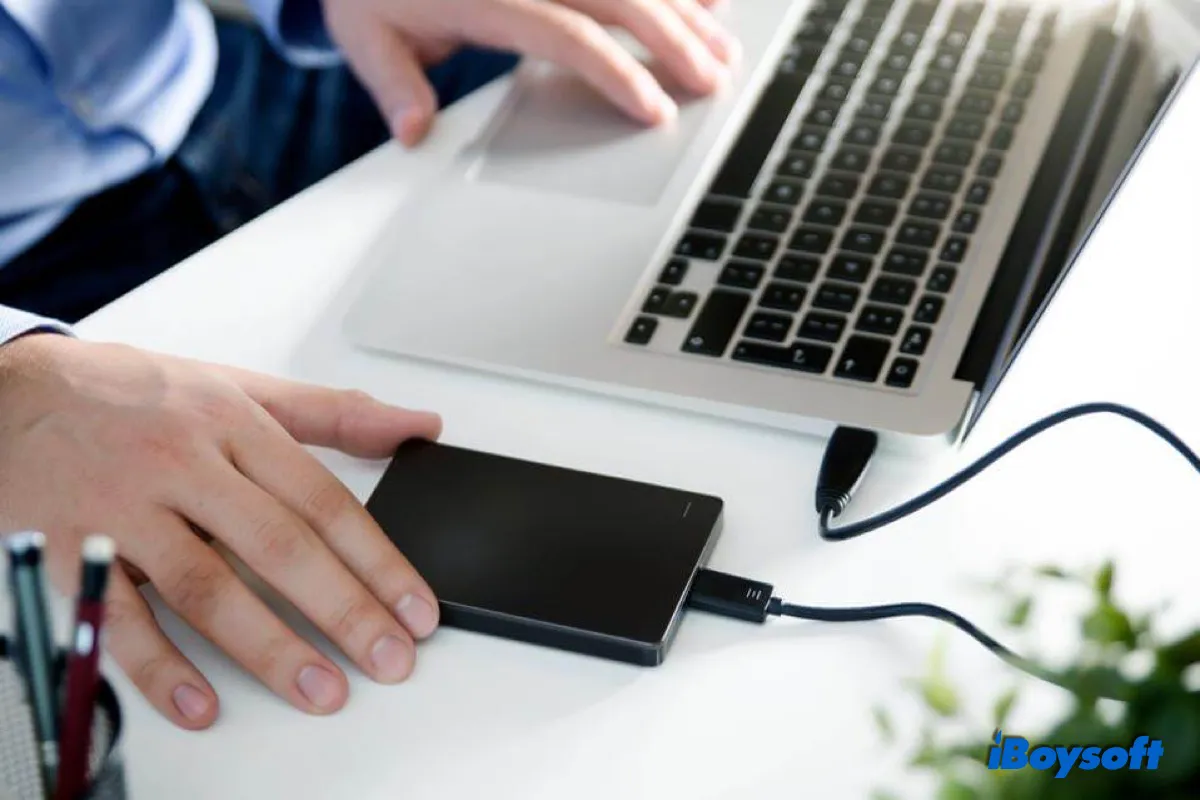
Plug in your external hard drive or connect to your NAS. If it’s your first time connecting, your Mac might ask if you want to use it with Time Machine. Click Use as Backup Disk.
Step 2: Open Time Machine Preferences
Go to Apple Menu > System Settings > General > Time Machine.
Step 3: Select Your Backup Disk
Click Add Backup Disk, choose your drive, and click Set Up Disk. You may be asked whether to encrypt your backups. Choose Encrypt for extra security (recommended if you’re using a portable drive).
Step 4: Let Time Machine Do Its Work
Your Mac will immediately begin the first backup. You can continue using your computer while this happens, though it may run a bit slower until it’s done.
That’s it—your backups are now automated!
How Time Machine Organizes Backups
Time Machine doesn’t just overwrite old files. Instead, it creates a timeline of backups:
-
Hourly backups for the past 24 hours.
-
Daily backups for the past month.
-
Weekly backups for all previous months.
When your backup disk fills up, Time Machine automatically deletes the oldest backups to make room for new ones. This ensures you always have recent data without manually managing storage.
Restoring Files with Time Machine
Backing up is only half the story. The real magic comes when you need to restore something.
To Restore a File:
-
Open the folder where the missing file used to be.
-
Click the Time Machine icon in the menu bar and select Enter Time Machine.
-
A timeline appears on the right side of the screen. Browse through different snapshots until you find the version you want.
-
Select the file and click Restore.
To Restore an Entire Mac:
If your Mac is wiped or you’re setting up a new one:
-
Boot into macOS Recovery (hold Command + R during startup).
-
Choose Restore from Time Machine Backup.
-
Select your backup disk and choose the desired date.
-
Your Mac will restore to that exact state—apps, settings, files, and all.
Best Practices for Using Time Machine
1. Use a Large Enough Drive
Always choose a backup disk at least twice the size of your Mac’s storage. More space means longer history.
2. Keep Your Drive Connected
Time Machine works best when the backup disk is regularly connected. If you use a portable Mac, try to plug it in at least once a day.
3. Encrypt Your Backups
An encrypted backup protects sensitive data in case your drive is lost or stolen.
4. Use Multiple Backups
For maximum safety, consider keeping two Time Machine drives: one at home and one at work or in a safe deposit box. This protects you from theft, fire, or other disasters.
5. Monitor Backup Health
Occasionally check that backups are happening as expected. Time Machine notifies you if there’s an issue, but it’s good to verify manually.
Beyond Time Machine: Extra Layers of Protection
While Time Machine is powerful, it’s not the only backup strategy you should consider.
-
Cloud Storage Services
Services like iCloud, Dropbox, Google Drive, or OneDrive sync your most important files across devices. They aren’t full backups but provide redundancy. -
Cloning Your Drive
Tools like Carbon Copy Cloner or SuperDuper create bootable copies of your Mac, letting you get back to work instantly if your drive fails. -
3-2-1 Rule of Backup
-
3 copies of your data (1 primary + 2 backups).
-
2 different storage types (e.g., external drive + cloud).
-
1 copy stored offsite.
-
Time Machine should be one part of a layered strategy, not your only backup.
Common Questions
Q: Will Time Machine slow down my Mac?
A: Only during the initial backup or very large file transfers. After that, backups are incremental and barely noticeable.
Q: Can I use the same drive for Time Machine and other files?
A: Yes, but it’s not ideal. If the drive fails, you lose both your backups and your extra files. Best to dedicate a drive solely for backups.
Q: What if I switch to a new Mac?
A: Time Machine makes migration seamless. When setting up the new Mac, you’ll be asked if you want to transfer data from a Time Machine backup.
Q: Can I back up multiple Macs to one drive?
A: Yes, Time Machine creates separate folders for each Mac. Just make sure the drive has plenty of space.
Conclusion
Backing up your Mac doesn’t have to be complicated or intimidating. With Time Machine, Apple has created a backup system so simple that anyone can use it—and so reliable that professionals depend on it. By setting it up once, you gain peace of mind knowing your files are protected against hardware failure, theft, accidents, or malware.
Think of it as digital insurance. You hope you’ll never need it, but when the unexpected happens, you’ll be grateful it’s there. Don’t wait until disaster strikes—back that Mac up today.
Leave a Reply